
Count by storage area
Separate pantry, cold room, freezer, bar, prep station, and cleaning closet so staff can work area by area.
Restaurants need practical inventory counts for dry goods, bar stock, packaging, cleaning supplies, and equipment. Inventory Mobile helps teams count by storage area, scan barcodes where available, add supplier or expiry fields, and export a clear file for ordering or cost checks.
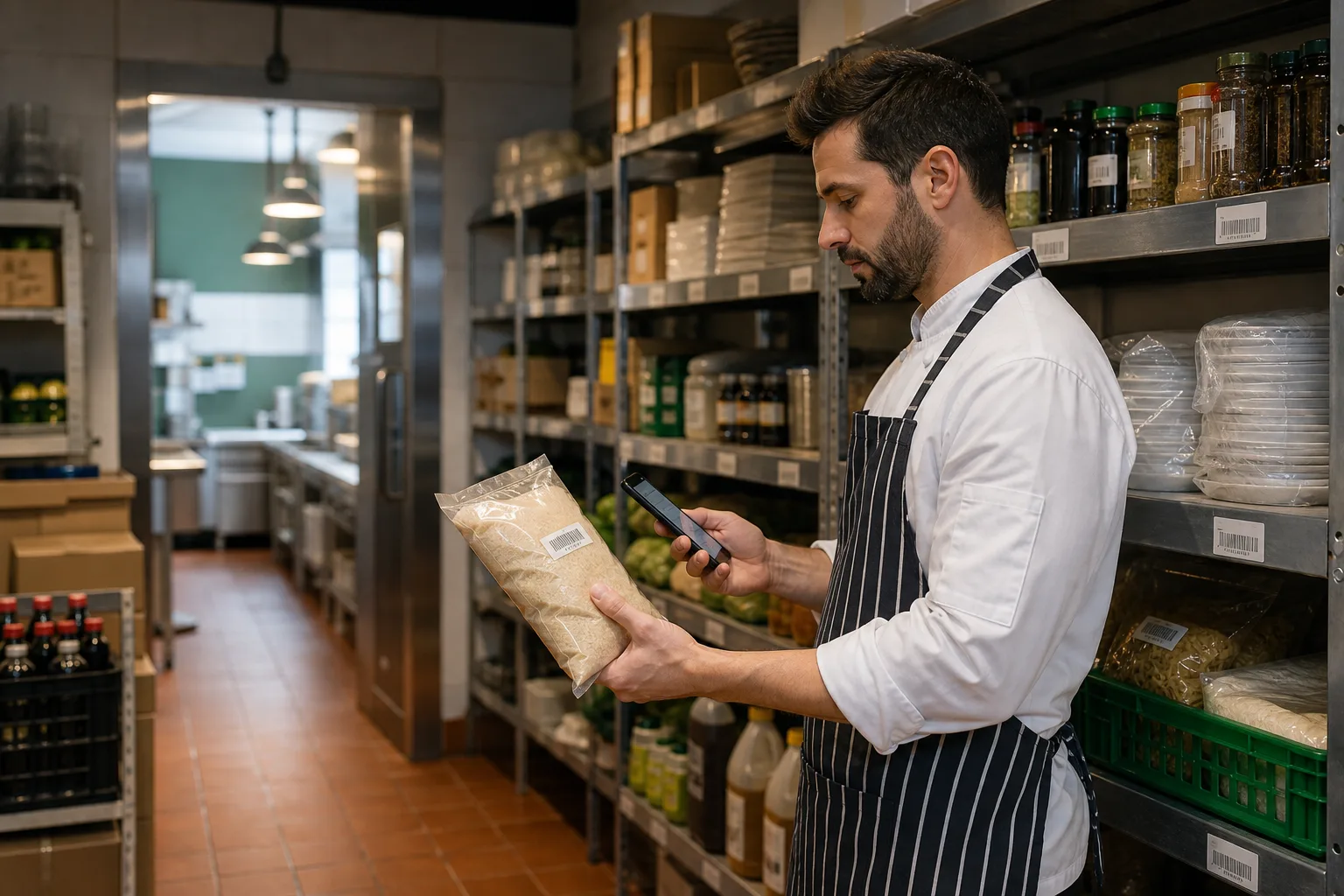
Restaurant inventory app works best when the team needs a fast mobile count, clear locations, and export-ready results.
Use these workflows as a starting point, then adjust locations, fields, labels, and permissions around your real count process.
Separate pantry, cold room, freezer, bar, prep station, and cleaning closet so staff can work area by area.
Custom fields can store supplier, pack size, unit, minimum stock, and ordering notes.
Send a reviewed spreadsheet to managers, owners, or accountants for purchasing and cost analysis.
Core features stay the same, but the page setup can match the operational details that matter most for restaurants.
Explore free inventory toolsKeep counting in basements, walk-ins, and storage rooms where network coverage is weak.
Use date fields and notes for expiry checks, rotation, or supplier quality observations.
Scan packaged goods or search manually for produce, prepared items, or unlabeled supplies.
Create Excel/CSV files for ordering, cost control, or accounting workflows.
Start with a simple structure. The best inventory pages are useful because the fields match how people already count.
Answers focused on this industry page and the way teams usually count stock, assets, or supplies.
Yes. You can search by name, SKU, supplier, or custom fields when a product does not have a barcode.
Yes. Offline counting is useful in basements, walk-ins, and back rooms with unreliable connectivity.
Yes. Date fields can be used for expiry or freshness reviews.
Yes. Exported count files can include supplier, unit, pack size, and quantity data for purchasing review.
Compare similar inventory workflows and choose the setup that matches your operation.
Install Mobile Inventory, import your list, scan items, and export results when the count is done.
Try free - 30 days